
Booking Links
Booking Links allow visitors to schedule appointments or consultations with you directly from your bio-link page. This feature is available for Business and Enterprise plan users.
Note: Booking links are only available for Business and Enterprise plans. Upgrade your plan to access this feature.
Supported Booking Platforms
You can integrate the following booking systems:
- Calendly - Popular scheduling platform
- Google Calendar - Google Calendar booking links
- Other - Any custom booking link URL
Setting Up Calendly
1
Create a Calendly Account
Sign up for a free Calendly account at calendly.com.
- Visit calendly.com
- Click "Sign up free"
- Enter your email and create a password
- Complete your profile setup
2
Set Up Your Availability
Configure your calendar availability and event types.
- Go to "Event Types" in Calendly
- Create a new event type (e.g., "30-minute consultation")
- Set your availability times
- Add event details and duration
- Save your event type

3
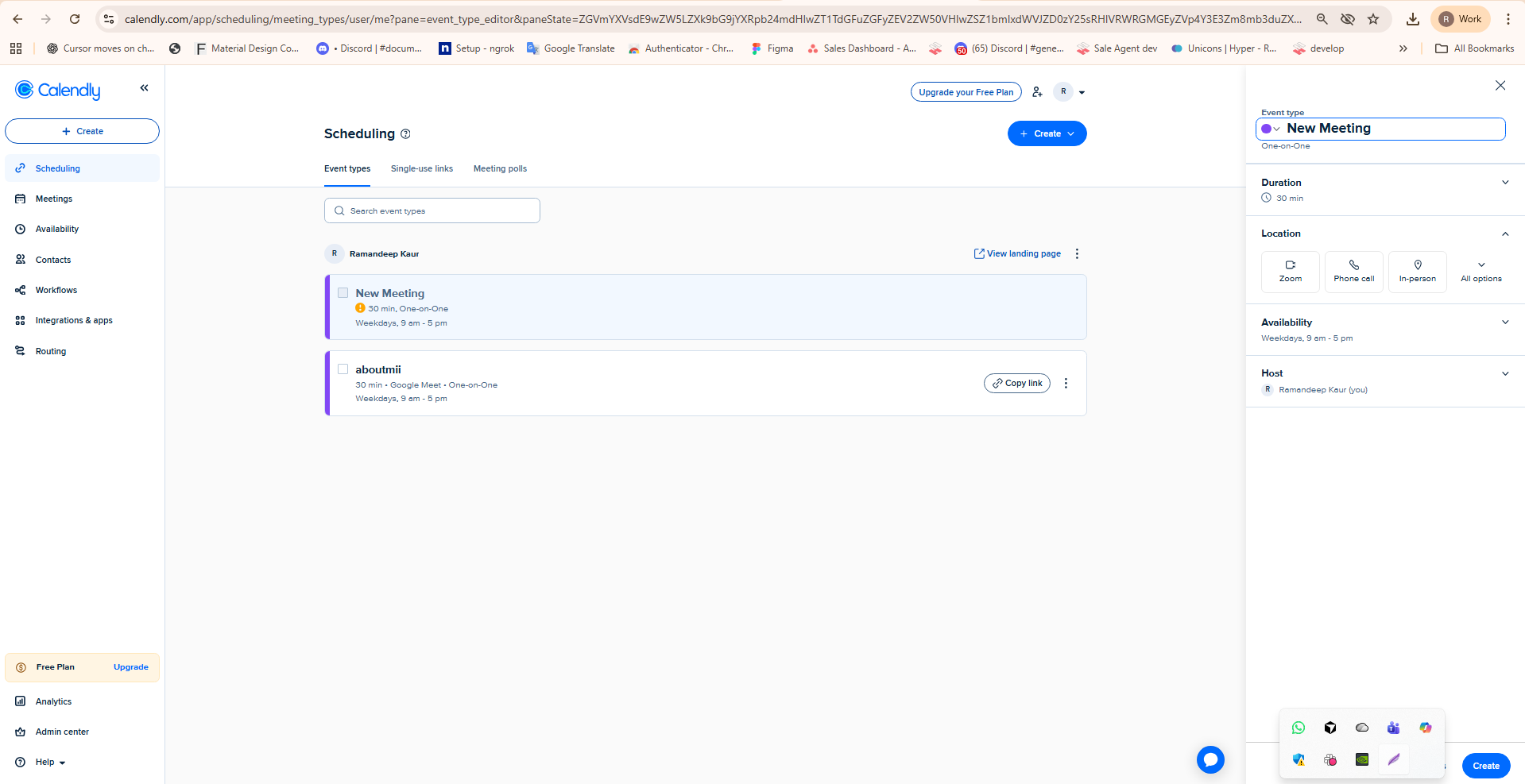
Get Your Calendly URL
Copy your Calendly scheduling page URL.
- Go to your Calendly dashboard
- Click on your event type
- Click "Share" button
- Copy your Calendly URL (e.g., https://calendly.com/your-username)
4
Add to Aboutmii
Connect your Calendly link to your Aboutmii page.
- In Aboutmii, go to the Booking Link section
- Click "Calendly" button
- Paste your Calendly URL
- Toggle "Show booking link" to enable it
- The link will be saved automatically when valid
Setting Up Google Calendar
1
Create Appointment Schedule
Set up an appointment schedule in Google Calendar.
- Open Google Calendar on your computer
- Click the "+" button next to "Other calendars"
- Select "Appointment schedule"
- Set your availability and preferences
- Save your appointment schedule
2
Get Your Booking Link
Copy your Google Calendar booking link.
- Click on your appointment schedule
- Click "Copy link" or "Share"
- Copy the booking link URL (e.g., https://calendar.google.com/calendar/appointments/... or https://calendar.app.google/...)
3
Add to Aboutmii
Connect your Google Calendar link to Aboutmii.
- In Aboutmii, go to the Booking Link section
- Click "Google Calendar" button
- Paste your Google Calendar booking URL
- Toggle "Show booking link" to enable it
- The link will be saved automatically when valid
Using Custom Booking Links
If you use a different booking system, you can add it as a custom link:
- Click "Other" button in the Booking Link section
- Enter your booking page URL (must start with http:// or https://)
- Toggle "Show booking link" to enable it
- The link will be saved automatically when valid
Best Practices
- Set clear availability - Make sure your booking calendar reflects your actual availability
- Test your link - Always test your booking link to ensure it works correctly
- Keep it updated - Update your booking link if you change platforms or URLs
- Use time zones - Configure time zones correctly in your booking platform
- Add buffer time - Include buffer time between appointments to avoid back-to-back bookings